
Your Family Photos, Organised and Kept as They Are
Every house has a box of photographs: heavy albums, studio envelopes, prints that moved from drawer to drawer, and then thousands of phone photos nobody can date or name. Families keep their photos; they rarely find the one they want when they want it. Today we are adding a new gallery and a photo editor to Nasayeb, built around two plain questions: how do we organise family photos so that we can find them, and how do we improve them without touching the original?
A gallery that shows the photo and the folder together
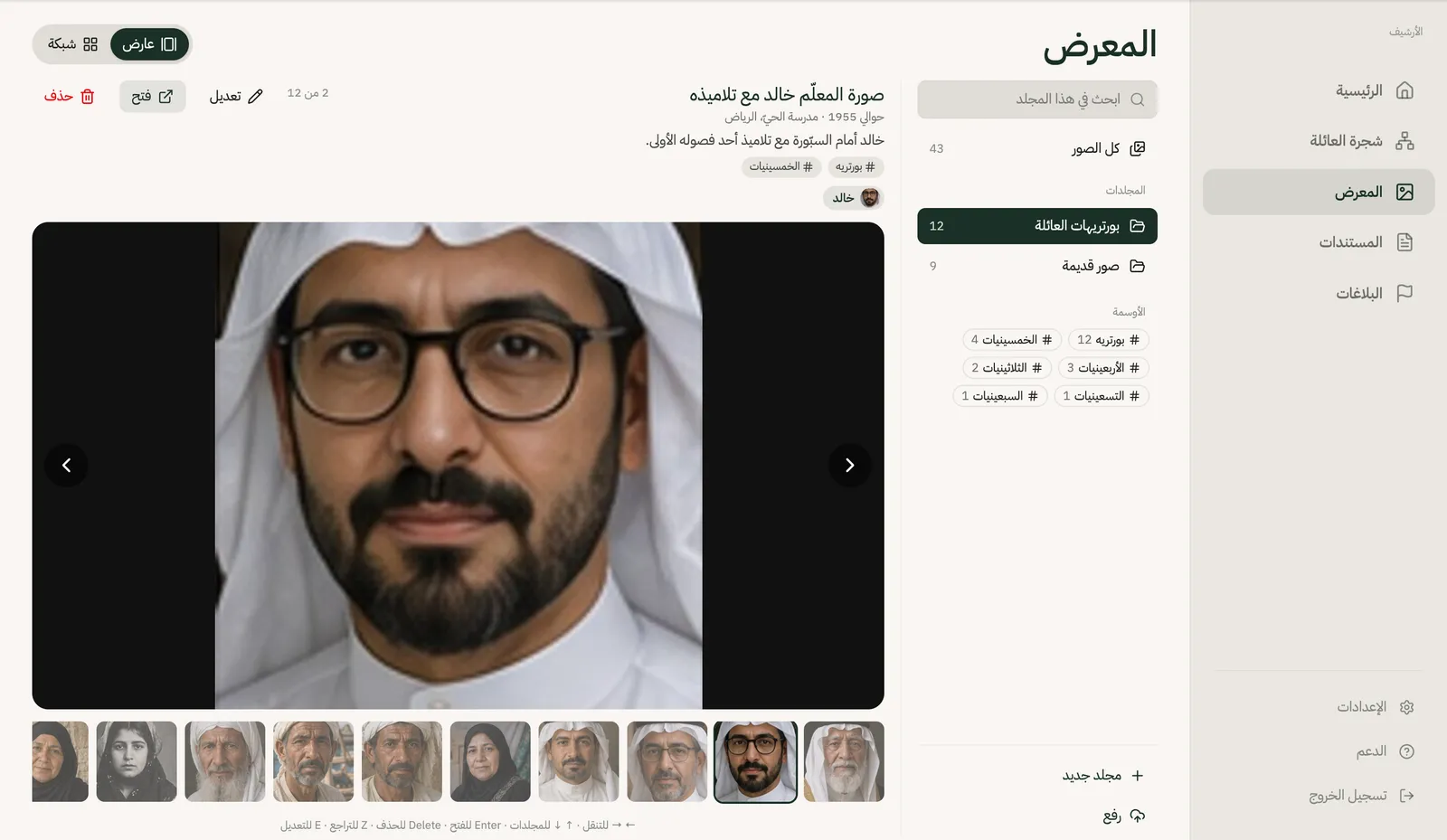
The new gallery puts everything on one screen: folders in a side pane, with a list of labels beneath them and the number of photos in each; the photo large in the middle, with its title, its description and the people in it; and a strip of thumbnails along the bottom for the rest of the folder. No windows opening and closing, no getting lost between pages.
It also works from the keyboard, for those who like to move quickly: the left and right arrows step between photos, up and down move between folders, Enter opens the full photo page, E opens the editor, and Delete removes a photo with a few seconds to undo if you change your mind. You can go through a whole folder without touching the mouse.
A description you can search, and labels that classify
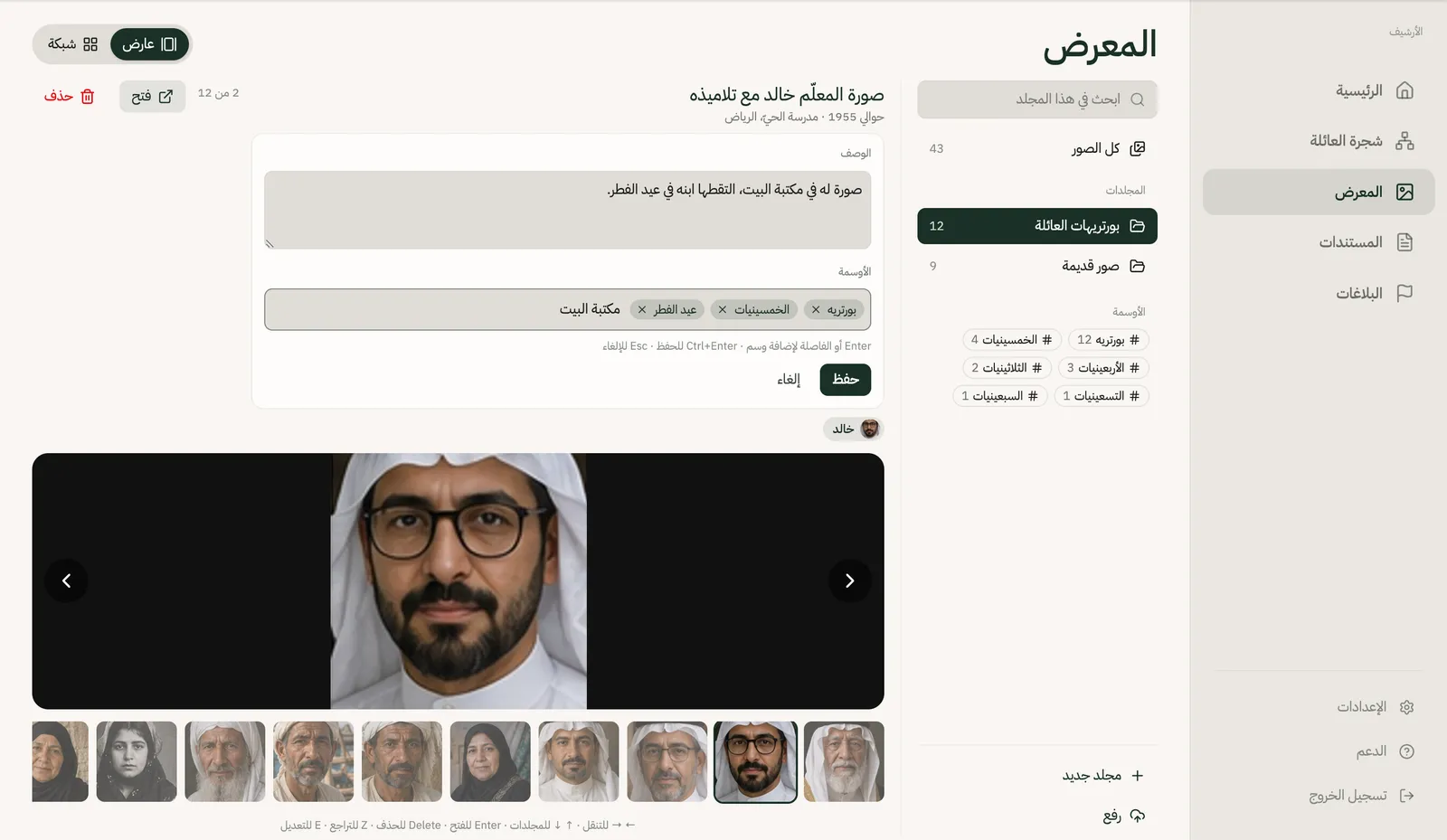
Every photo gets a free-text description in your own words: who is in it, where it was taken, what was going on. Beside it go short labels that classify the photo: "Eid al-Fitr", "the home library", "wedding", "1950s". Type a label and press Enter or a comma to add it, all in place under the photo's title, without leaving the gallery.
Labels are not decoration. Click any label in the side pane and the gallery shows every photo that carries it, across all folders. The search box looks through descriptions and labels together, so typing "library" finds the photo even if its title says nothing about a library.
Who's in the photo?
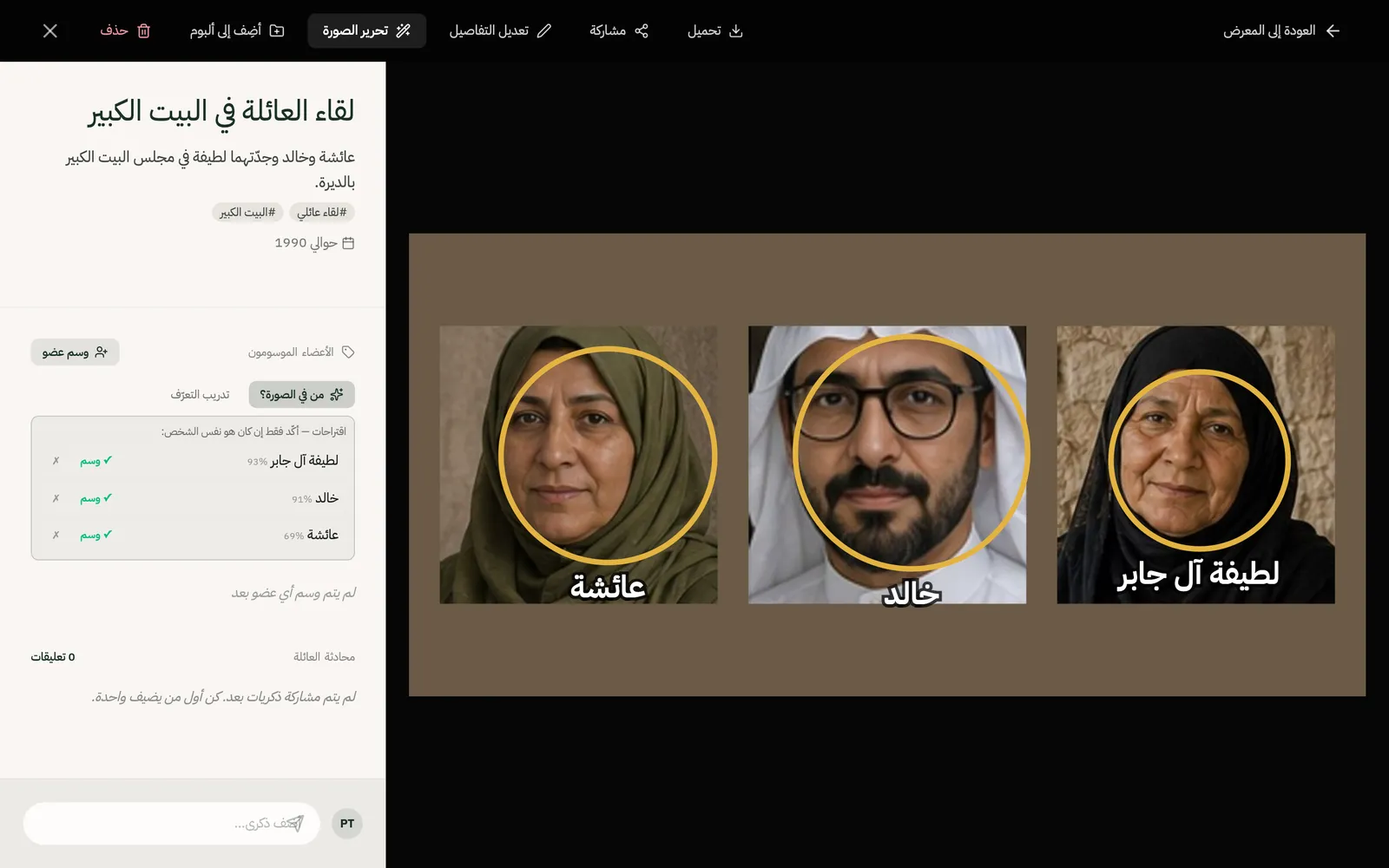
The first thing a photo loses is its names. A picture of three women in the majlis of the big house is no use to a grandchild who does not know who they are. So the photo page now has a button, "Who's in the photo?": it draws a circle around every face, and when a face is known in your tree it writes the name under the circle and suggests it, with how confident it is. One click confirms the tag; another rejects it if it is not the right person.
Every name on the photo is a link. Click "Latifa Al Jaber" and her full profile opens, with her dates, her places and her other photos; press Back and you are returned to the same photo, where you left off.
A photo editor that never touches the original
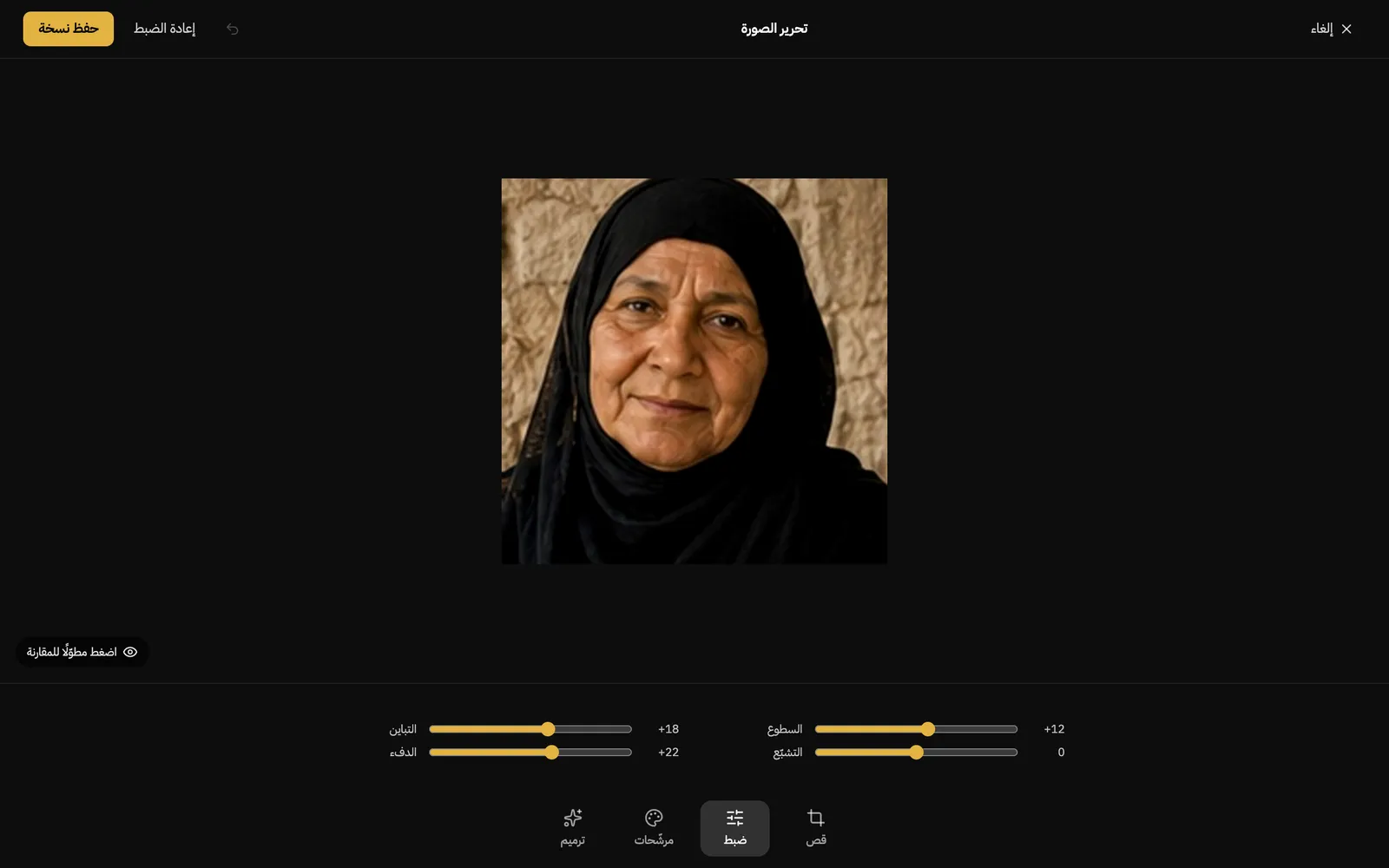
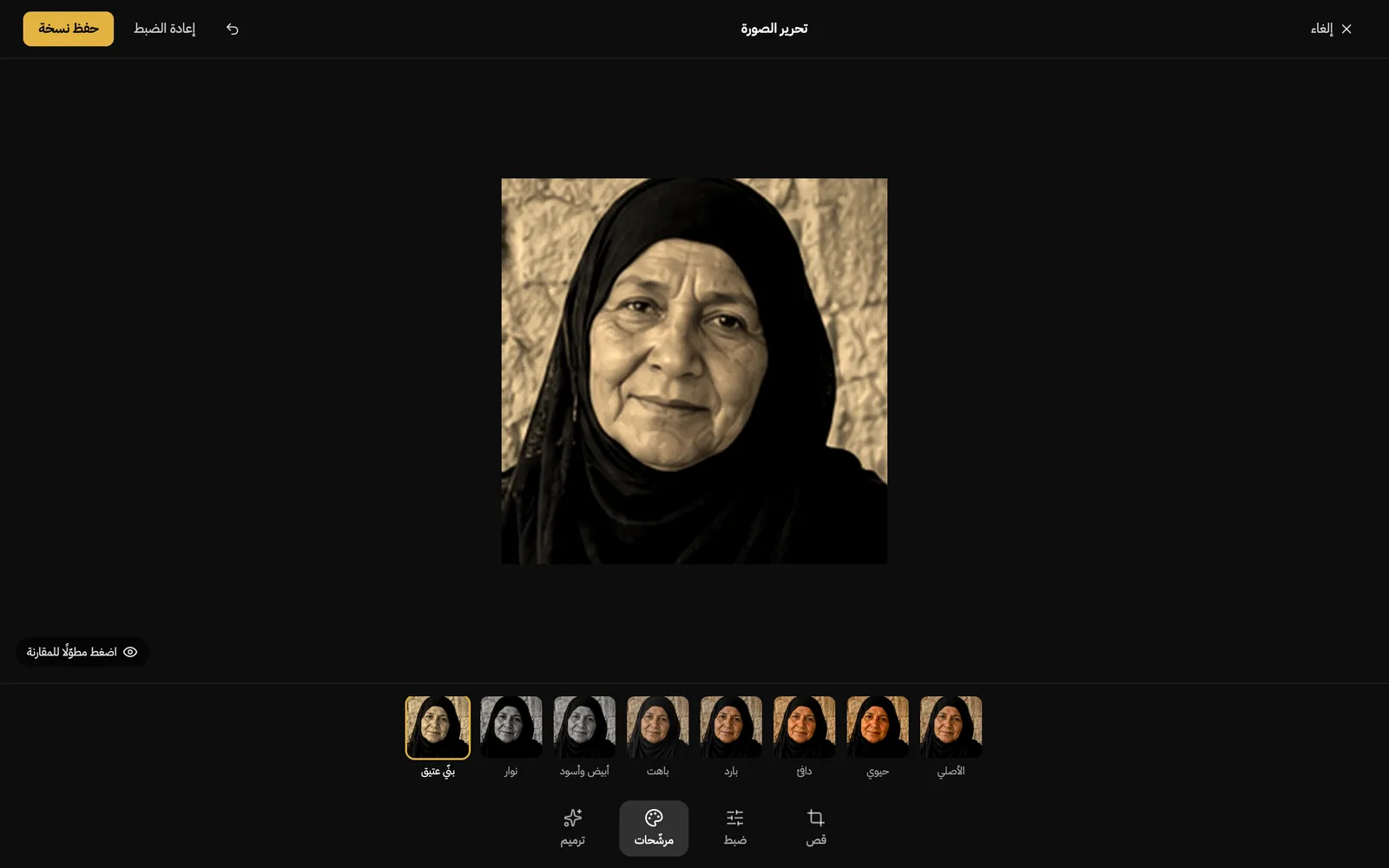
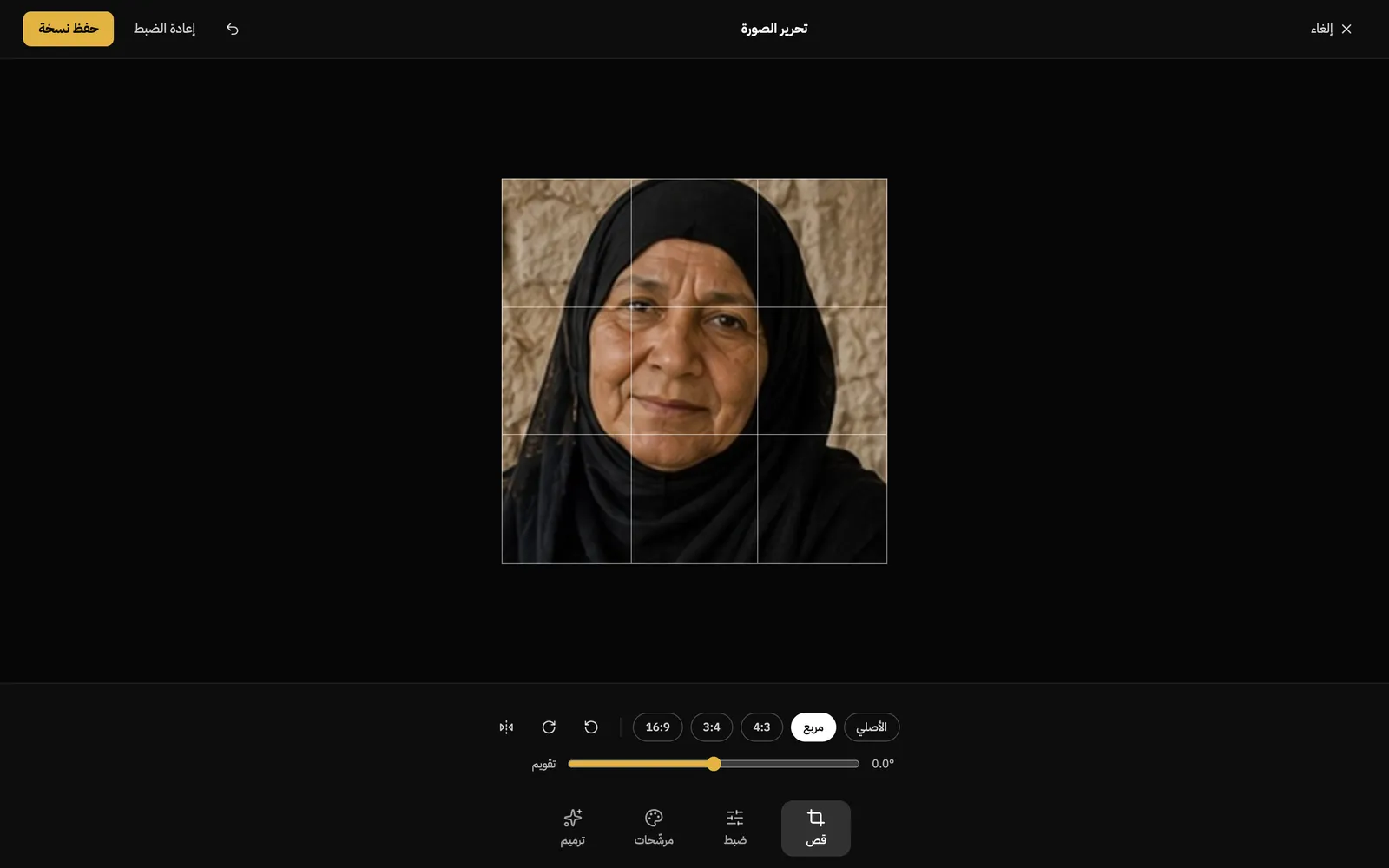
Many old photos need a small touch: cropping a broken edge, straightening a slight tilt, lifting a dark print. We have added an editor inside Nasayeb that is enough for these touches, with no outside software:
- Crop and rotate: crop to the original shape, Square, 4:3, 3:4 or 16:9; rotate; straighten a tilt with a fine slider; flip horizontally.
- Adjust: brightness, contrast, saturation and warmth, each on a slider whose effect you see at once.
- Filters: eight ready-made filters: Original, Vivid, Warm, Cool, Faded, B&W, Noir and Sepia.
- Compare and undo: press and hold on the photo to see the original under your finger, and undo any step with the undo button.
The rule we built the whole editor on: the original is never changed. Every edit is saved as a new copy beside the original photo, labelled as an edited copy, so that whoever looks at it in twenty years knows which picture came out of the camera and which one a cousin improved. Even the save button says "Save a copy", not "Save".
In fourteen languages, and inside the family only
All of this works in Nasayeb's fourteen languages, and right-to-left in Arabic, Urdu and Persian, as you can see in the screenshots. And the photos stay inside the family: every photo belongs to one family tree, and only people with access to that tree can see it. Photos are not public, and face recognition learns only from the faces of your own tree.
What we are working on: repair, colour and enlargement (later)
What follows is not in the app yet. These are examples produced by tools we are developing now, tried on photos of the fictional sample family Al Abdullah, and shown here so you know where we are heading. They need far more computing power than the app runs on today; they will come to the app later, and we are not promising a date. They will live in the editor's Restore tab, which you can see in the screenshots above; its buttons stay disabled until the tools are ready.
- Repairing old prints: removing scratches, dust and cracks from a scanned photograph.
- Colour for black-and-white and sepia photos.
- Enlarging small photos: an old passport photo, or a face cut from a group photo the size of a postage stamp, enlarged four times with sharper detail.
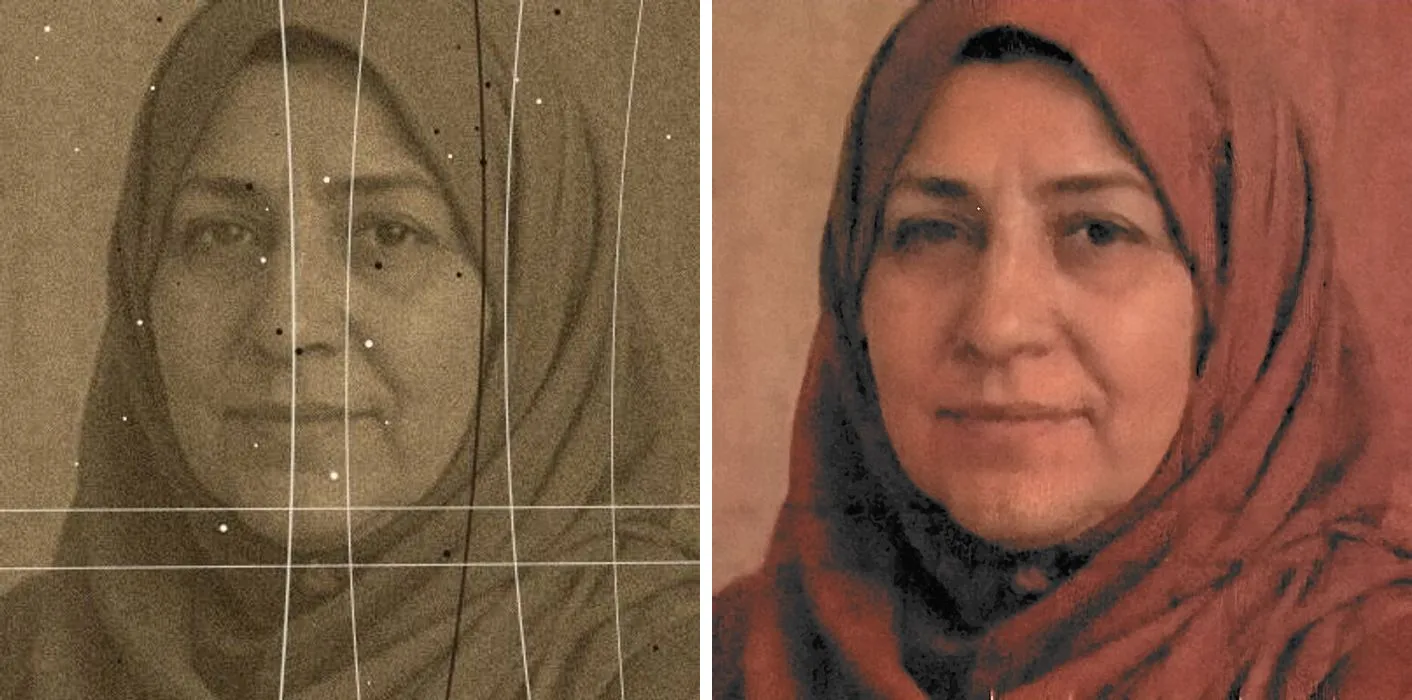
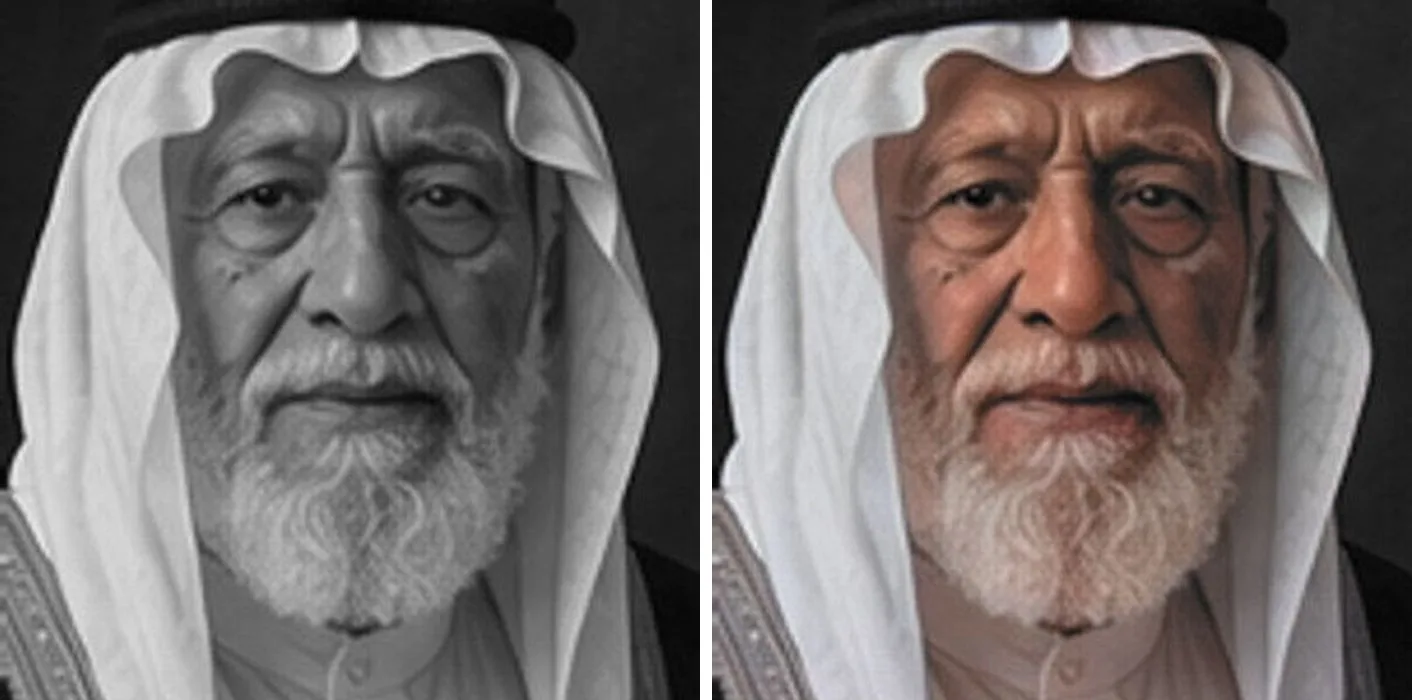
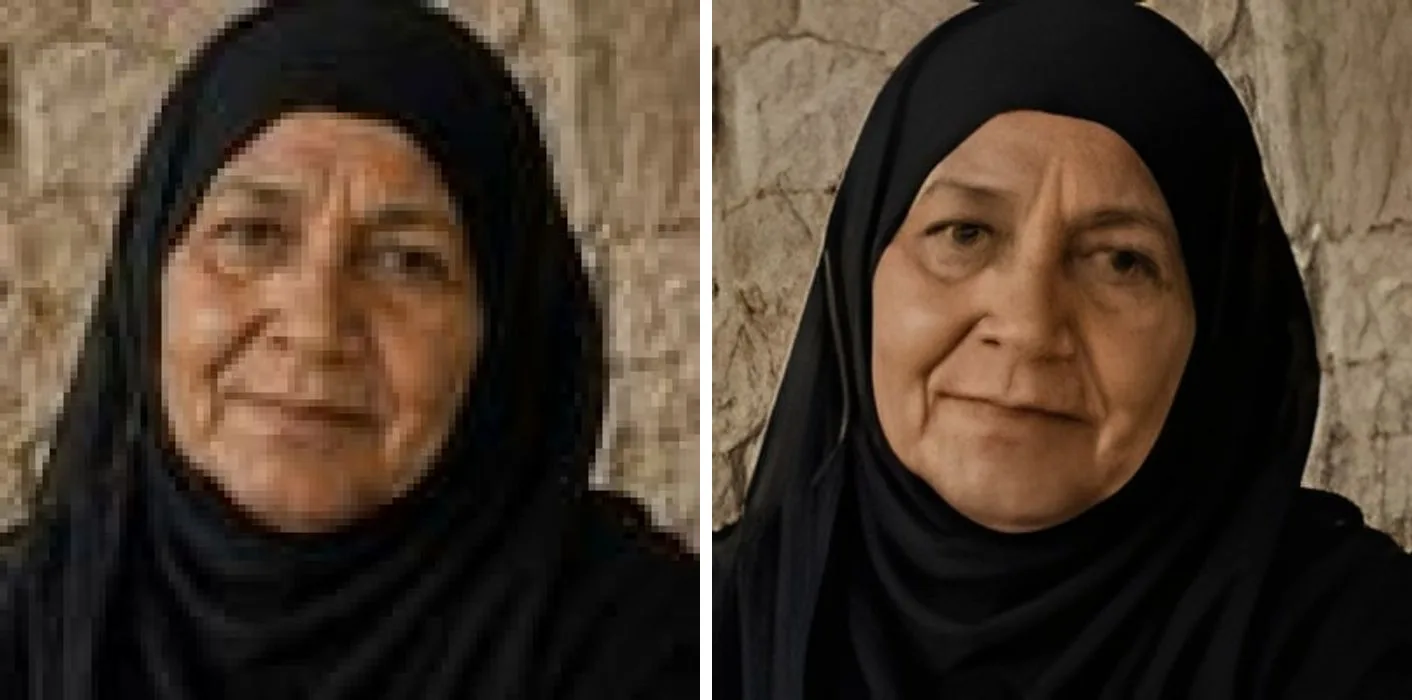
Let us say it plainly: the colours these tools add are a guess, built on what they have learned from other photographs, not a record of what was. The grandfather's thobe may be white in the coloured copy and was in truth grey. So these copies will be treated like any other edit: a copy labelled as AI-enhanced, with the original kept untouched beside it.
Start with one folder
Open the gallery, make one folder for photos whose story you know, and give each a sentence and a label. Then press "Who's in the photo?" on the oldest group photo you have, and ask whoever knows. The names written today are the ones the grandchildren will read.